[HADA] Ad-hoc check assignment is now available
Assign one-off checks by facility, checklist, and date right from Tasks > Schedule.
In addition to regular checks, you can now assign checks needed only on specific dates straight from the schedule with Ad-hoc check assignment.
Hello from the Hada operations team.
Checks without a repeating cycle, such as outsourced cleaning, one-time inspections, or re-checks after a complaint, can now be assigned and tracked to completion under Tasks > Schedule. Checklist frequencies and facility links stay as they are.
✅ Assign ad-hoc checks from the schedule
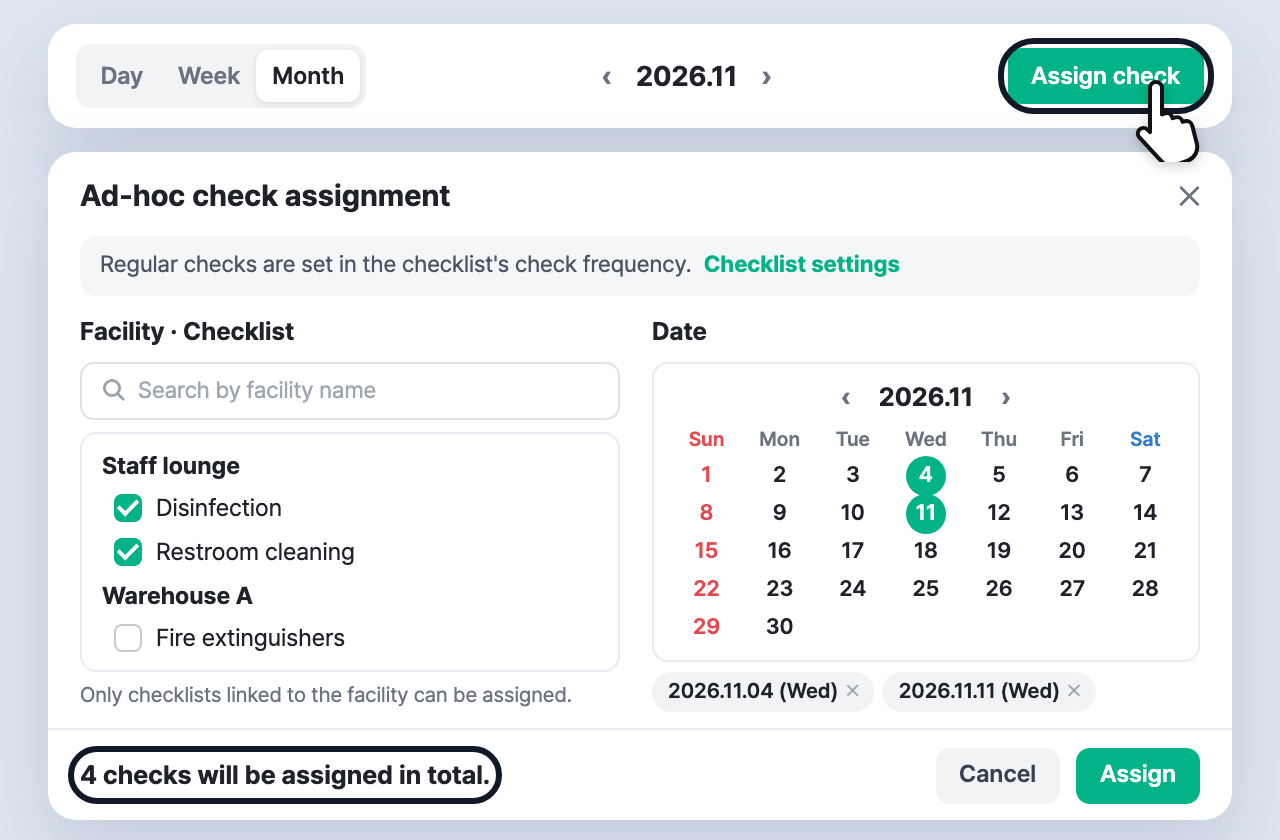
Click Assign check at the top right of Tasks > Schedule (same place in Day, Week, and Month) to open Ad-hoc check assignment. If you open it from Assign check in a day’s schedule window, that date is already selected.
- Facility · Checklist: Checklists are grouped under each facility they are linked to. Search by facility name and tick the checklists to assign. Only checklists linked to the facility can be assigned.
- Date: Pick multiple dates on the mini calendar. Only today or later can be selected; holidays can be selected too (a notice is shown).
- Each checklist × date becomes one assignment, and the total is shown at the bottom (N checks will be assigned in total).
- Combinations already assigned on that date (regular or ad-hoc), or dates before the facility’s check start date, are excluded automatically with the message N already-assigned checks will be excluded.
Regular checks are still set in the checklist’s check frequency under Checklist settings. Use the Checklist settings link in the notice at the top of the window to go there.
✅ Tell regular and ad-hoc apart, change dates, or delete
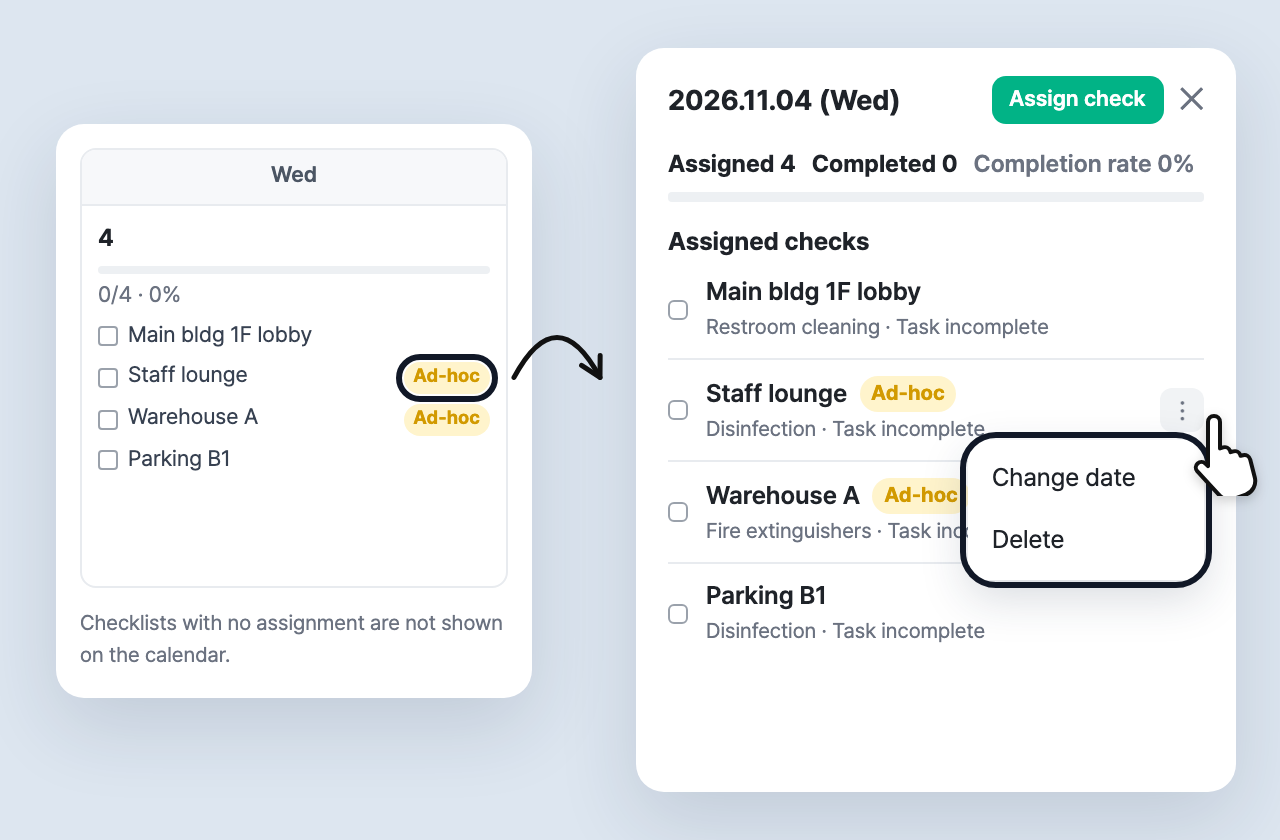
Ad-hoc assignments show an Ad-hoc badge in calendar cells, the day list, and the schedule window. Items without a badge are regular checks.
- An ad-hoc check is marked complete when at least one check is submitted for that facility and checklist on the assigned date. It is counted as an assigned check in Status, Statistics, and notifications, just like regular checks.
- Use the ⋯ menu on an ad-hoc row to Change date or Delete (one at a time, today or later only).
- Already submitted check records will not be deleted.
- The worker app does not change. Workers submit checks via the facility QR code as before.
✅ Delegate ad-hoc assignment separately
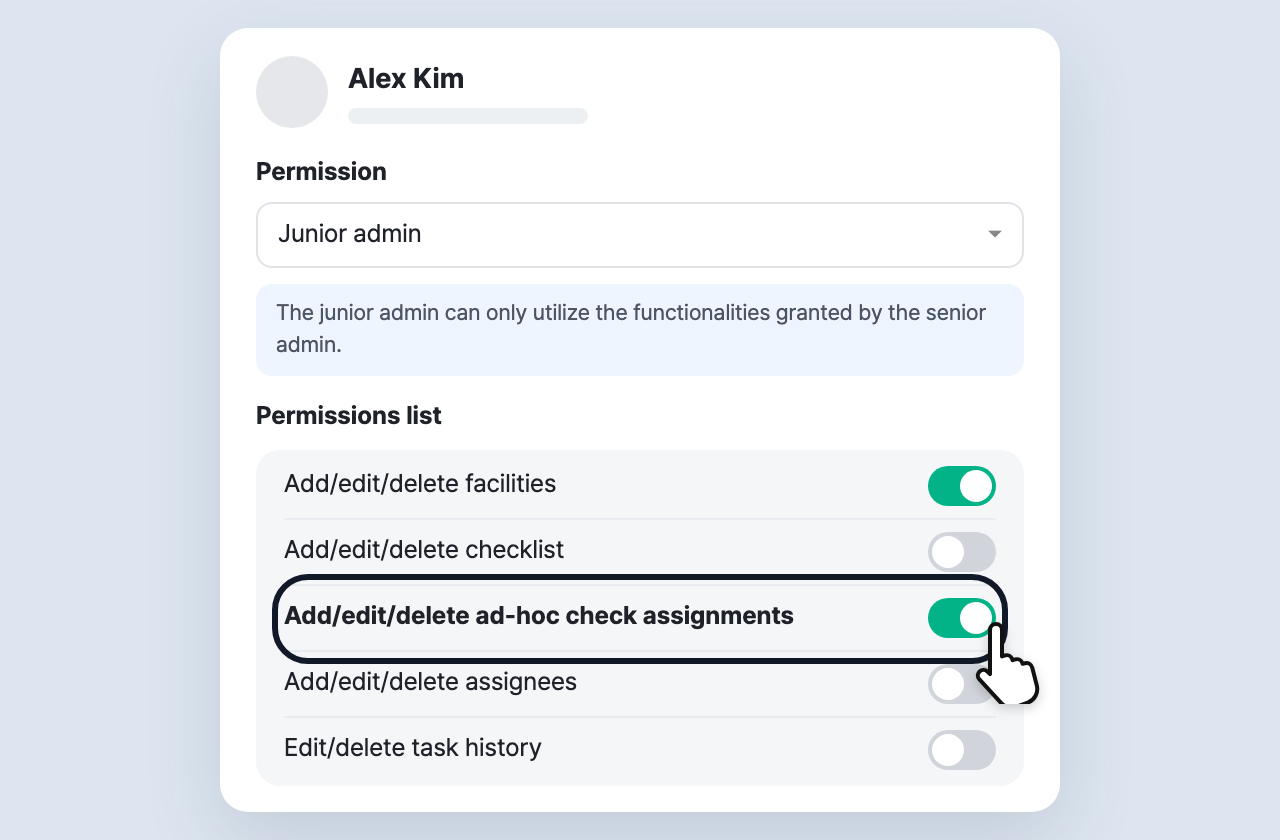
Under Settings > Admin authority, you can give a junior admin the Add/edit/delete ad-hoc check assignments permission.
- Delegate only ad-hoc assignment, without granting permission to edit checklists or facilities.
- Owners and senior admins always have it; for junior admins it is off by default.
- Without the permission, the Assign check button and the ⋯ menu are hidden. Viewing the schedule works as before.